 With User Groups, you can now:
Create and manage groups of users
Assign tasks to a group instead of an individual
Allow group members to claim tasks, mitigating the chances of duplicate work
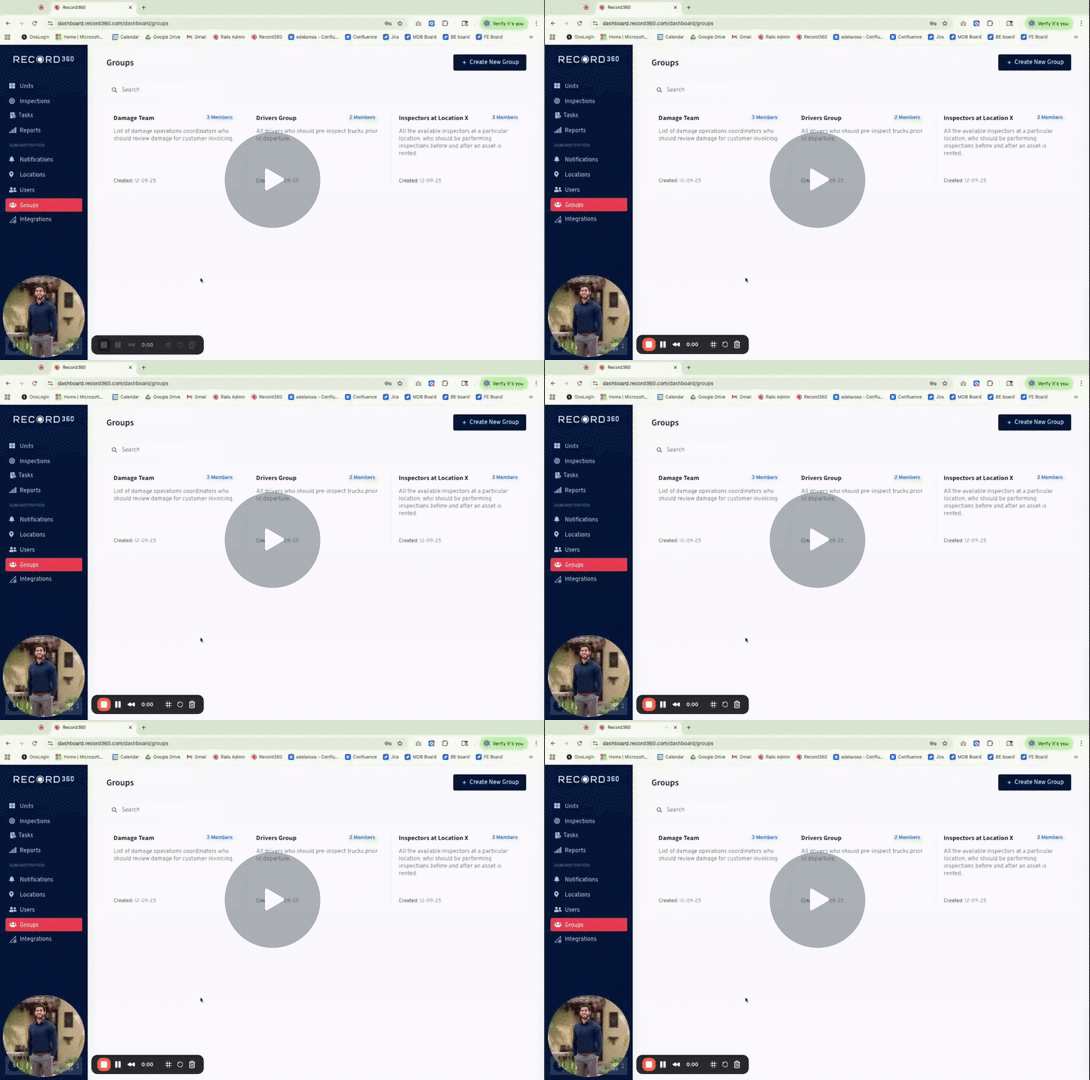
User Groups Full Demo - Watch Video
Creating a User Group
Managers or admins can create user groups directly from the dashboard. Groups can represent individual teams (Service Team, Drivers Team), entire branch locations, or departments.
Step-by-Step Process
Go to the User Groups section in the dashboard.
Select Create Group.
Enter the Group Name (ex: Service Team).
Add an optional Description to clarify what the group is used for (ex: Reviews damage and estimates repair costs).
-
Add team members to the group by first specifying a location, then selecting the users from within that location.
Note: group members can be configured across locations, and there is no maximum number of group members which can be added.
Select Create New Group to finish.
Editing a User Group
Only managers or admins can edit user groups directly. All other users can only view the details of the user group (name, description, members, etc.).
Step-by-Step Process
Go to the User Groups section in the dashboard.
Select a Group Card.
Select Edit Group on the top right hand side.
-
Users can edit Group Name, Description, and Members
Note: to add new members users can search by first & last name across locations, or filter by location and select the checkbox for next to member’s emails.
Select Save
Assigning a Task to a Group
Tasks can be assigned to a group the same way they are assigned to an individual:
Navigate to Tasks on the dashboard
Select New Task
Choose the task type (regular, draft inspection, or inspection task)
Enter task details (name, unit, due date, etc.)
-
Select a group under the Group Assigned field
Note: a task cannot be assigned to a group AND a individual assignee, only one can be specified
-
Click Create Task
Note: Once created, task notifications are sent to all members of the group on the mobile app.
Claiming a Group Task
On the mobile app, all members of the group will see the group task under their ‘My Task’ List View.
To claim a task, or express the intent to complete it, group members must:
Select the + button under the Assignee field of the Task Details Page (applies to all task types)
OR select the ‘Start Inspection’ CTA on the Task Card/Details Page (applies only to inspection tasks)
OR marks a task as completed on the Task Card/Details Page (applies to only to regular tasks)
Once a task is claimed
the task is removed from other group members’ ‘My List’ Task View, but is still viewable under their ‘All Task’ List View
the task details reflect the individual’s name who claimed the task on the Task Card/Details pages of the mobile app
Completing a Group Task
Group tasks are completed the same way as other tasks are today, by either:
Completing the inspection associated with an inspection task
OR marking a regular task as complete
Upon completion, the individual’s name who completed the task is reflected on the Task Card/Details pages of dashboard and mobile app under the ‘Assignee’ field.
FAQs
Q: Can a task be assigned to both a group and an individual?
A: No. Tasks can be assigned to either a group or an individual, not both.
Q: Can a user belong to multiple groups?
A: Yes. Users can be members of multiple groups across teams, locations, or departments.
Q: What happens when someone starts a task?
A: The task is automatically claimed and removed from other group members’ task lists to prevent duplicate work.
Q: Can inspection tasks be assigned to groups?
A: Yes. All tasks types including regular tasks, draft inspection, and inspection tasks can all be assigned to groups.
Q: Which user types can be assigned to groups?
A: Only standard & non-email users can be assigned to a group.
Updated